ReDem by ZugWare

Created by James L. Jendro

ReDEM was a third‑party terrain import tool created for RailWorks (later known as Train Simulator Classic) that gave route builders far more control than the game’s built‑in DEM system. Instead of relying on RailWorks’ limited heightmap importer, ReDEM allowed creators to load multiple DEM formats, stitch tiles, correct projections, and generate smooth, accurate terrain across large areas. For many route developers, it became an essential companion to RailWorks because it produced cleaner, more realistic landscapes and dramatically reduced the manual work required to shape terrain inside the editor.

forum profile https://www.trainsim.com/forums/member/57080-deanville

e-mail: deanville@attbi.com

Archived product page ReDem

ReDem installer https://www.digital-rails.com/files/redem_104b.zip

How to use ReDem described in a video tutorial Train Simulator 2016 – Route Building – #12 Real World Terrain

Collection of route building tutorial videos Steam Community :: Guide :: Route Building Tutorials – Train Simulator 2016

ReDem key generation code, program https://www.digital-rails.com/files/ReDem_Key.exe

public static bool CheckXP()
{
    int num;
    char[] chArray = Regex.Replace(ConfigOpt.GetOption("User").Trim() + "ReDem", @"\s+", " ").ToCharArray();
    int upperBound = chArray.GetUpperBound(0);
    byte[] buffer = new byte[upperBound + 1];
    int num3 = upperBound;
    for (num = 0; num <= num3; num++)
    {
        buffer[num] = (byte) Strings.Asc(chArray[num]);
    }
    byte[] buffer2 = new SHA512Managed().ComputeHash(buffer);
    string str2 = "";
    num = 0;
    do
    {
        str2 = str2 + Conversion.Hex(buffer2[num]);
        num++;
    }
    while (num <= 15);
    string str = "";
    string str3 = "ACEG8KM9QSUWY246";
    string str4 = "BDFHJLNPRTVXZ357";
    num = 0;
    do
    {
        if ((num % 2) > 0)
        {
            str = str + str3.Substring((int) Math.Round(Conversion.Val("&h" + str2.Substring(num, 1))), 1);
        }
        else
        {
            str = str + str4.Substring((int) Math.Round(Conversion.Val("&h" + str2.Substring(num, 1))), 1);
        }
        num++;
    }
    while (num <= 15);
    return (Regex.Replace(ConfigOpt.GetOption("Key"), @"\s*", "") == str);
}

Navigating the Rail Simulator route editor

When in route editor of Rail Simulator you can navigate in 3D space using the arrow keys or the 2D map. Click the map icon in the compass window to toggle between 2D and 3D views.
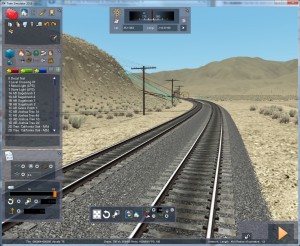
tehachapi_1

Move about the 2D map by click and dragging. To center the map and enter the current coordinates press Ctrl and left click. When you switch back to 3D your view will be those in the compass coordinates.
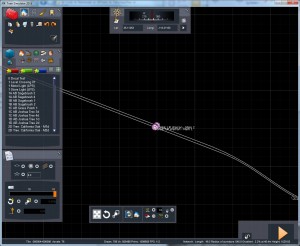
tehachapi_2

To adjust camera to ground level press Ctrl+Shift+Home.

http://dpsimulation.blogspot.com/2012/09/train-simulator-2013-hot-keys.html